1. Merchant App: Web
a. Creating an Event
b. Orders
c. Insights
2. Merchant App: Mobile
a. Creating an Event
b. Orders
c. Insights
3. Web Events Marketplace
1. Merchant App: Web
a. Creating an Event
- Click “Create an Event”
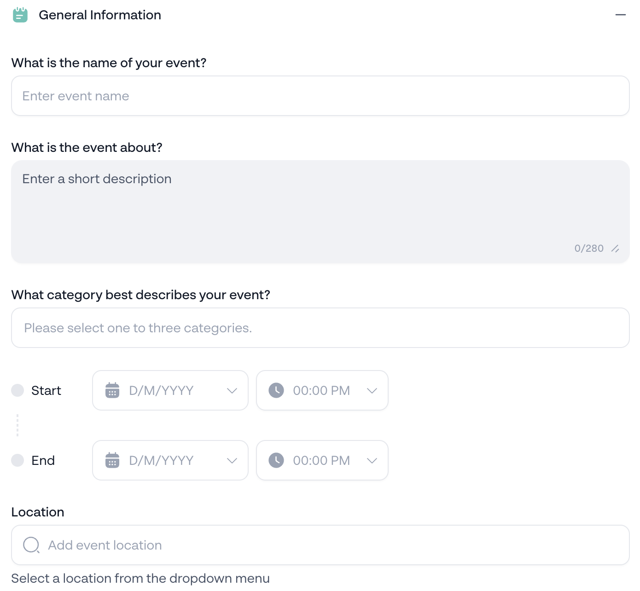
- General Information
- Enter an event name
- Enter a short description
- Select category (Please select at least one and up to three categories.)
- Event Dates
- Enter start date
- Enter start time
- Enter end date
- Enter end time
- Add event location
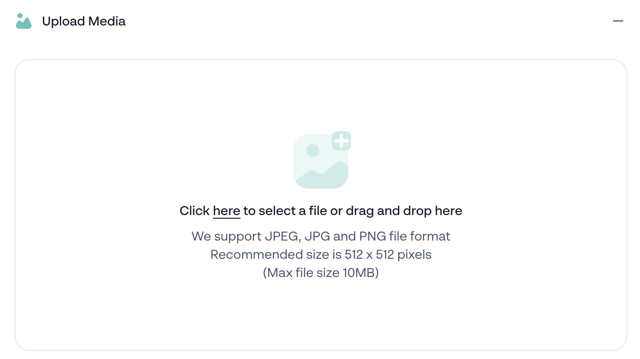
- Upload media
- Upload event poster
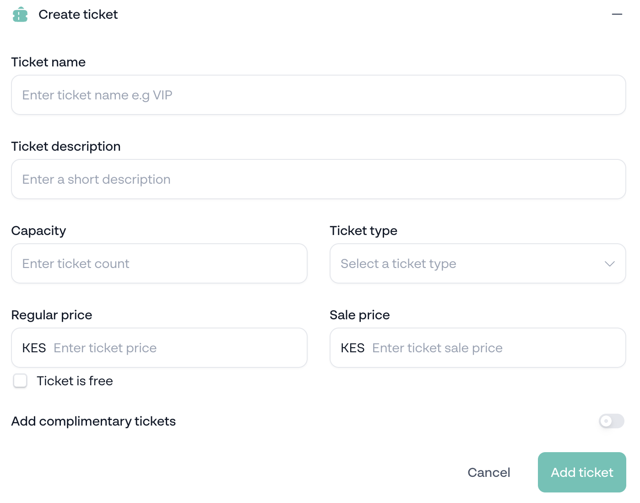
- Create Ticket
- Enter ticket name
- Enter a short description
- Capacity
- Ticket type
- Regular Price
- Sale price
- Add complimentary ticket
- Click save and continue
A pop up message asking if you’d like to list the product to the marketplace appears:
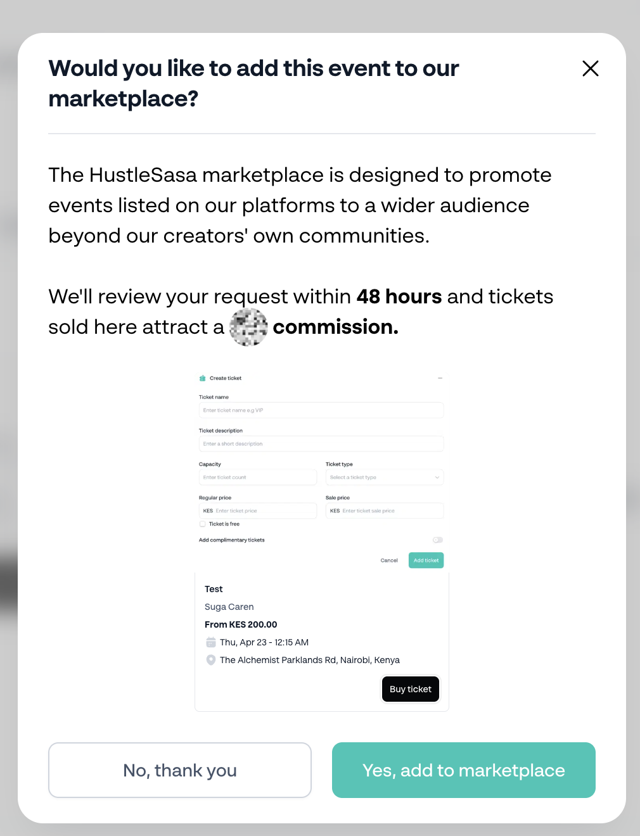
Note: commission charged will vary depending on the country
- No, thank you
Your product is not added to the events marketplace, you can sell your event on your independent buyer storefront.
- Yes, add to marketplace
Your product is added to the events marketplace, you can sell your event on your:
a. Independent buyer storefront.
b. Events marketplace
b. Orders
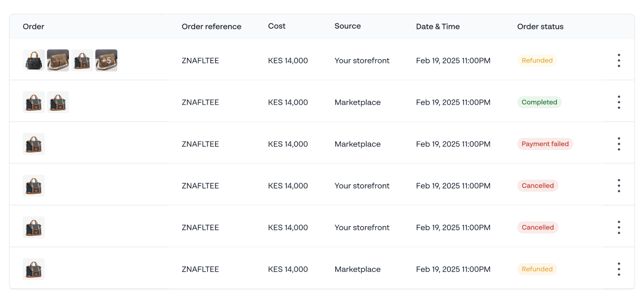
- The order list specifies the “source” e.g. marketplace or storefront
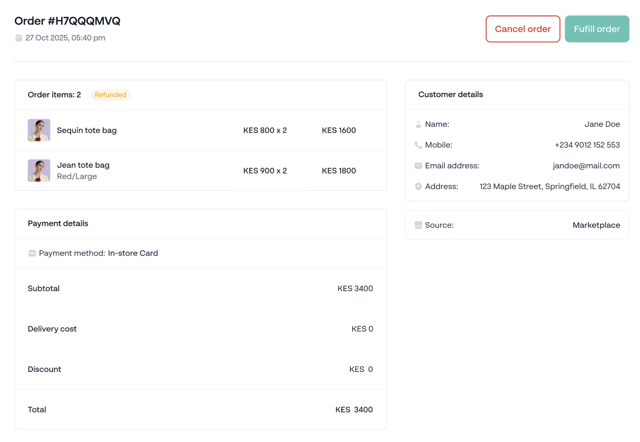
- The order details specifies the “source” e.g. marketplace or storefront
c. Insights
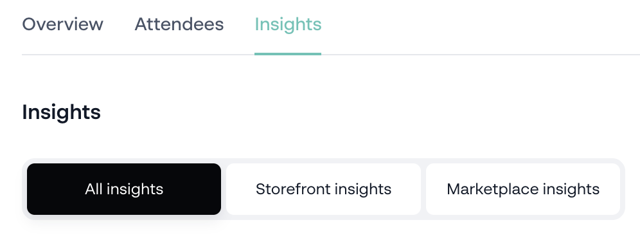
Use the filter buttons to check for aggregated or platform specific insights:
- All insights
- Storefront insights
- Marketplace insights
2. Merchant App: Mobile
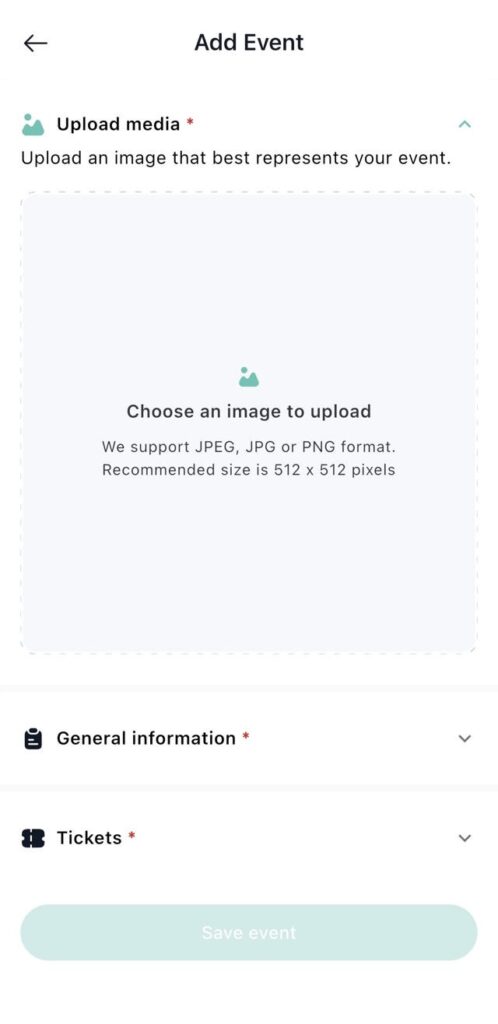
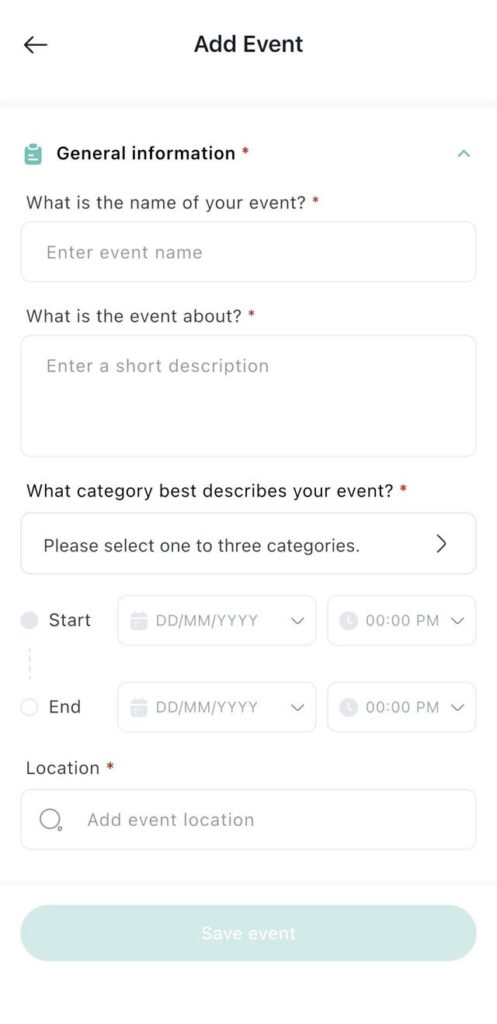
a. Creating an Event
- Click “Create an Event”
- Upload media
- Upload event poster
- General Information
- Enter an event name
- Enter a short description
- Select category (Please select at least one and up to three categories.)
- Event Dates
- Enter start date
- Enter start time
- Enter end date
- Enter end time
- Add event location
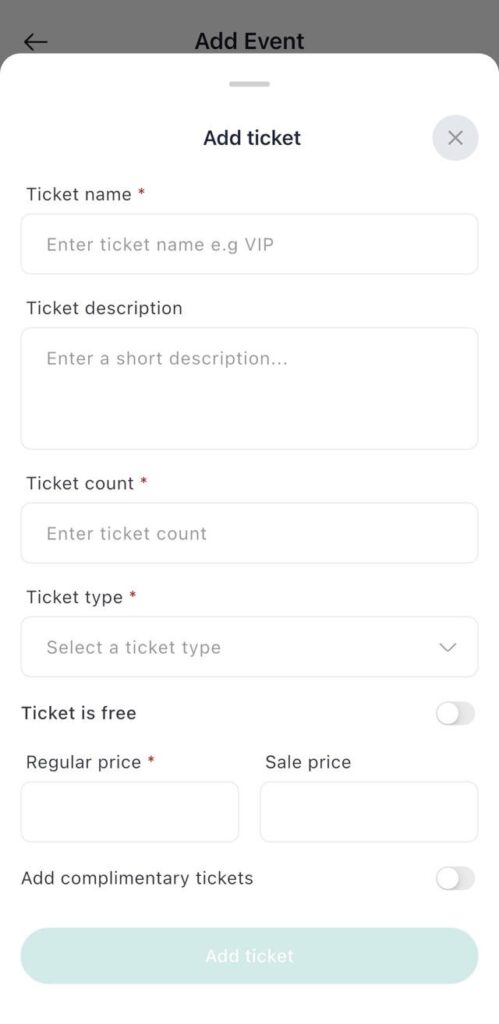
- Create Ticket
- Enter ticket name
- Enter a short description
- Capacity
- Ticket type
- Regular Price
- Sale price
- Add complimentary ticket
- Click “save event”
A pop up message asking if you’d like to list the product to the marketplace appears:
design update pendind
- No, thank you
Your product is not added to the events marketplace, you can sell your event on your independent buyer storefront.
- Yes, add to marketplace
Your product is added to the events marketplace, you can sell your event on your:
a. Independent buyer storefront.
b. Events marketplace
b. Orders
- The order list specifies the “source” e.g. marketplace or storefront
- The order details specifies the “source” e.g. marketplace or storefront
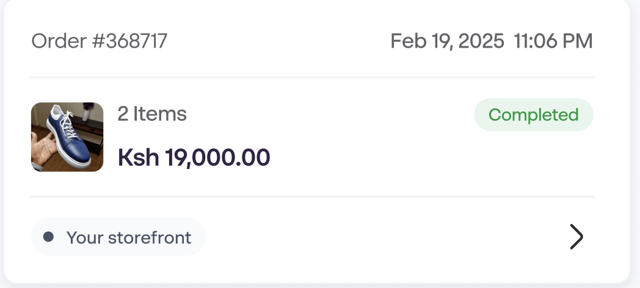
Order overview
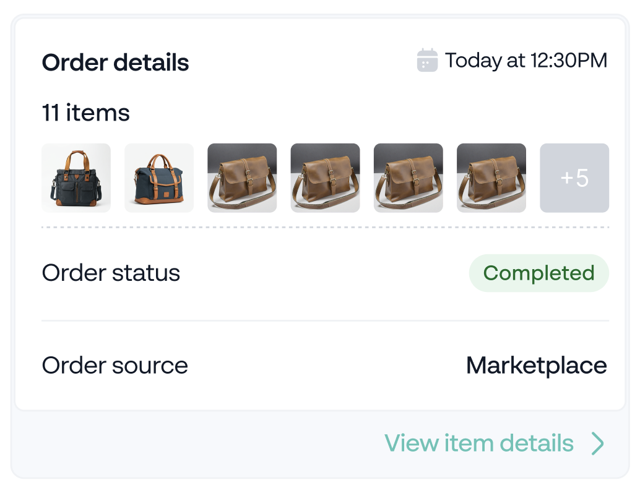
Order details
c. Insights
Use the filter buttons to check for aggregated or platform specific insights:
- All insights
- Storefront insights
- Marketplace insights
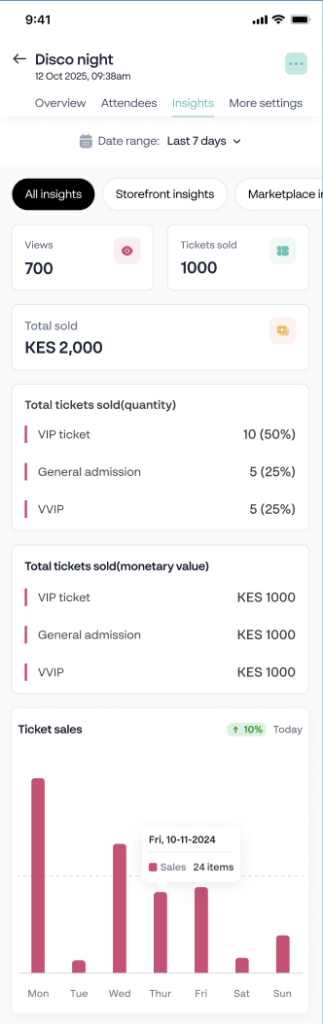
Insights
3. Web Events Marketplace
- Go to https://hustle.events/
- Search for the event you would like to buy from
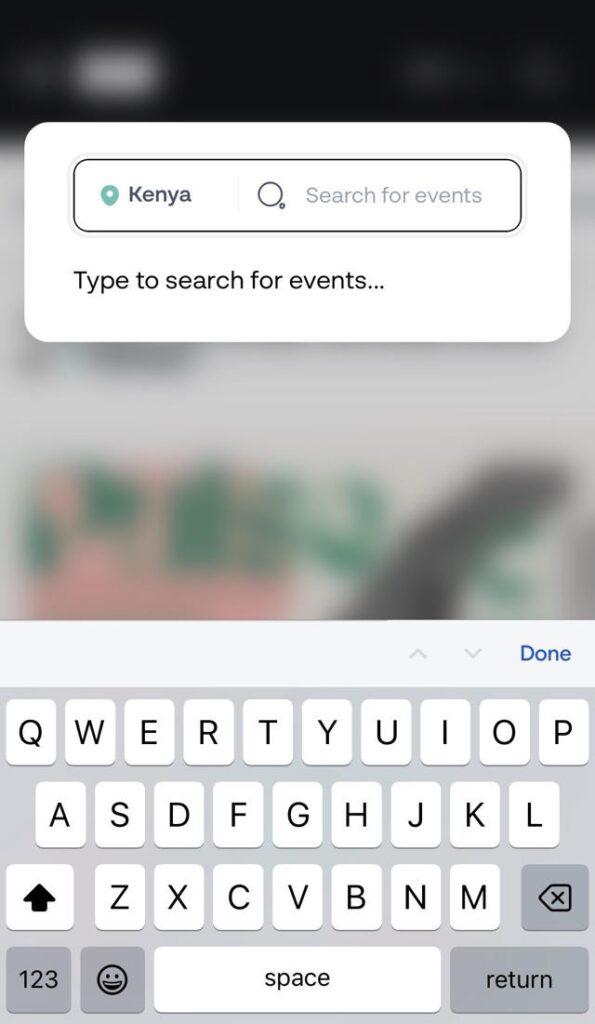
- Select the ticket you would like to purchase
- Click + to increase the number of tickets you would like to purchase
- Click – to reduce the number of tickets you would like to purchase
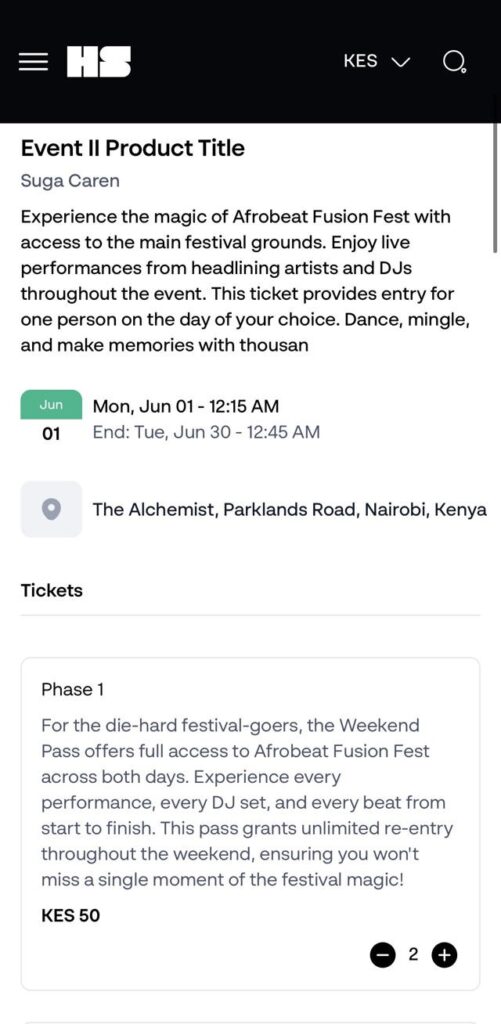
- Click “Buy Ticket”
- Enter personal information:
- First name
- Last name
- Phone number
- Email address
- Select mode of payment & complete your purchase
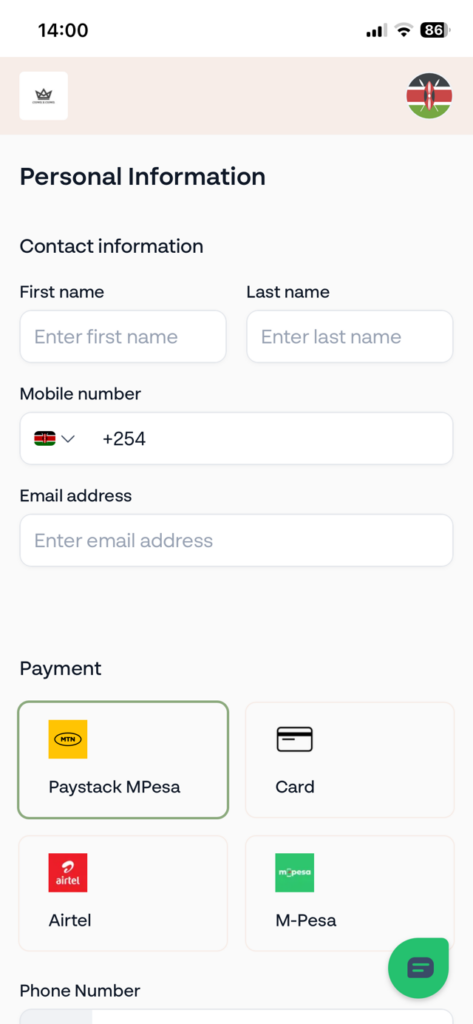
- Your tickets are accessible via:
- The checkout page once reloaded (note: requires OTP verification after a fixed time period)
- Sent to your email address
- Sent to your WhatsApp