ADDING Terms and Conditions
Log in to your Hustlesasa Web App for Event Organizers
Click Hustle Settings on the left-hand menu.
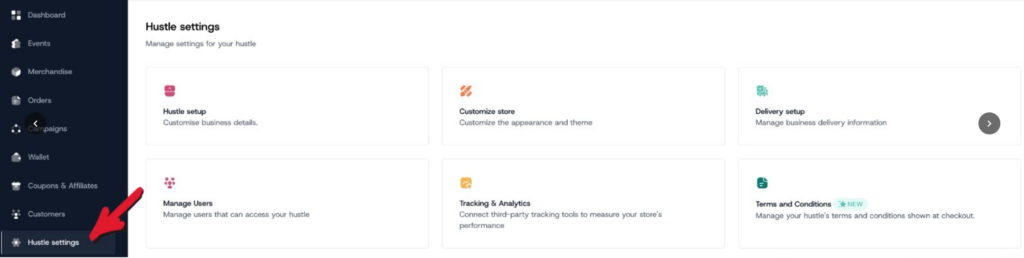
Select Terms & Conditions.
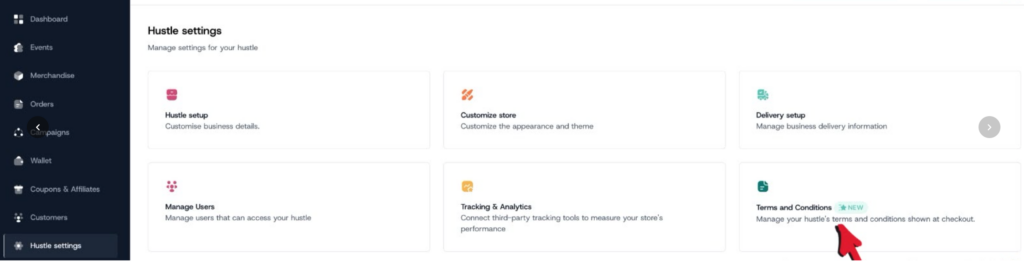
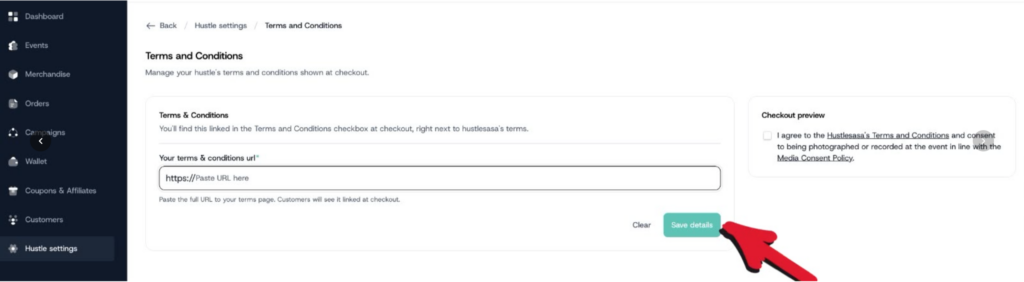
On the Terms and Conditions page, enter your the url to legal terms in the textbox.
Once you’ve added your terms, take a moment to review the live preview to the right side; your terms are added to the existing statement on checkout.
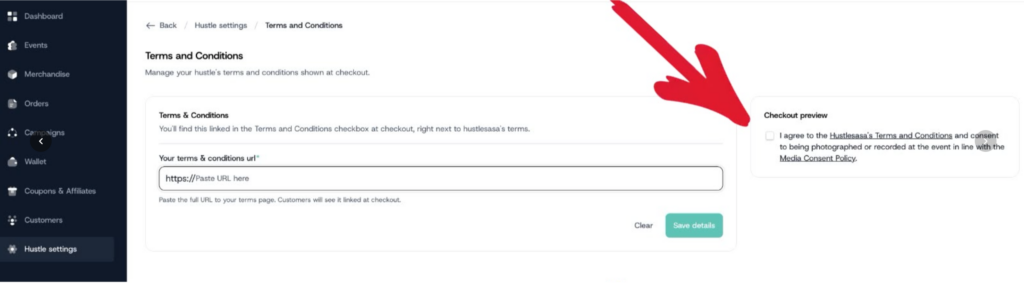
This preview shows exactly how your checkout checkbox will look to fans.
When you’re ready, click Save Changes.
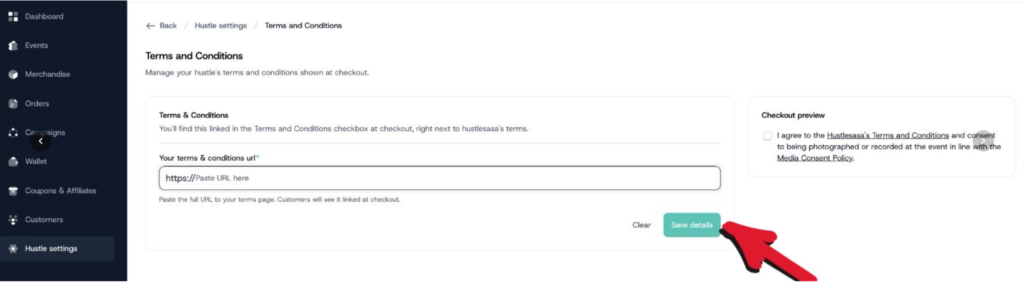
And that’s it — your Terms & Conditions go live immediately.
Quick reminder:
Changes take effect immediately after saving.
There’s no draft or scheduled publishing option, so always double-check your content before saving.
REMOVING Terms and Conditions
If you ever want to remove your store Terms & Conditions, you can do that easily.
Just go back to Hustle Settings → Terms & Conditions, click Clear, and save your changes.
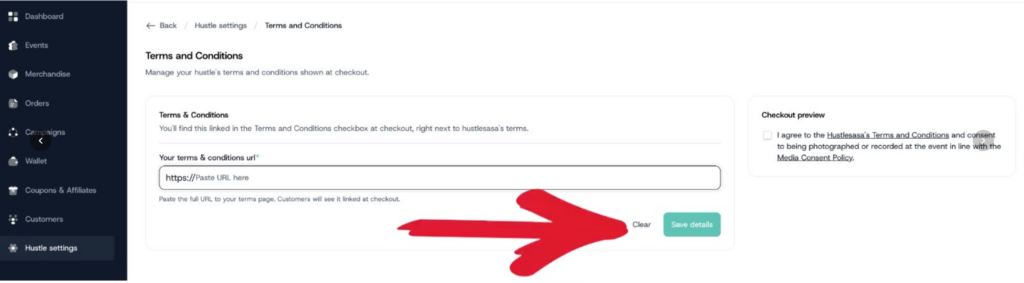
Once cleared:
- Your store terms are removed from checkout
- Only Hustlesasa’s platform terms will remain
- And the change applies immediately